

Gmail is the most-used inbox on the planet — over 1.8 billion accounts and counting. It's incredibly capable at sorting promotions, suggesting three-word replies, and finishing your sentences with Smart Compose. But the moment you ask Gmail to actually understand your business, the cracks appear fast.
Ask vanilla Gmail to "reply to this customer using our refund policy," and it won't know what your refund policy is. Ask it to "answer this lead the way our top AE would," and it has no idea what your sales motion looks like. Out of the box, Gmail's AI is trained on the open internet — not on your help center, your SOPs, your product docs, your past tickets, or your Notion knowledge base.
The fix is to train Gmail on your own data. That means feeding the AI that drafts and sends from your inbox the same context a new hire would get on day one: your product, your tone, your policies, your historical replies, and your edge cases.
There are two efficient ways to do this in 2026:
- Google's native route — Gemini for Google Workspace + Gmail's personalization
- InboxPilot — a purpose-built AI email assistant that plugs into Gmail and is trained on your own data
Can you actually train Gmail on your own data?
Yes — but it's important to be precise about what "training" means here. You can't retrain Google's underlying Gemini or Gmail models on your private data. What you can do is give the AI a curated, retrievable knowledge base it can pull from on every reply. In modern AI terms, this is called retrieval-augmented generation (RAG) or grounding, and from a user perspective it feels exactly like the chatbot "knows" your business.
The first method uses Google's built-in tooling: Gmail's personalized Smart Compose, the Help Me Write feature, and Gemini for Google Workspace's grounding on your Drive files. This keeps everything inside Google's ecosystem and is best for individual drafting assistance.
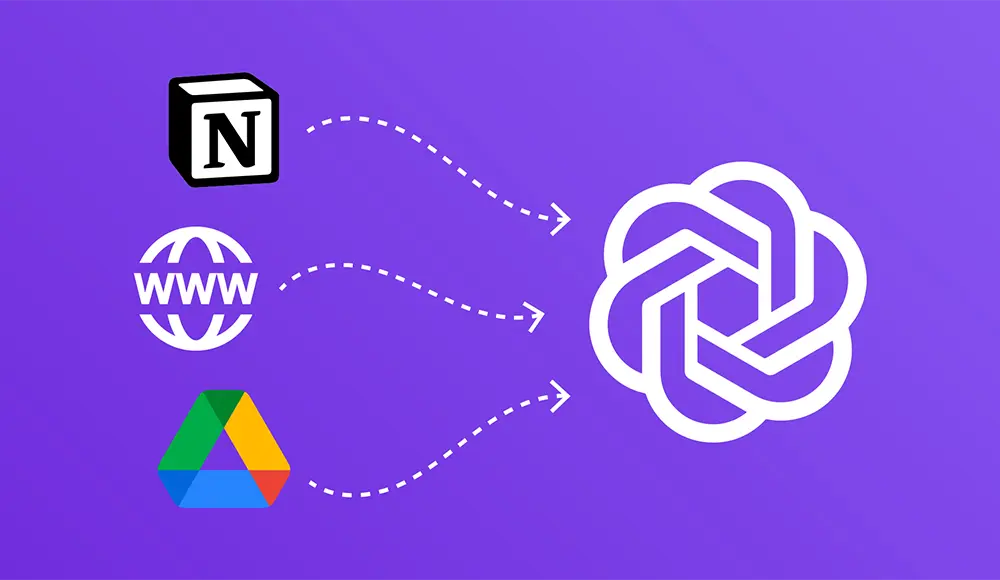
The second method uses InboxPilot, a purpose-built AI email assistant that connects directly to Gmail, ingests your data (files, websites, Notion, Q&A pairs, past emails, calendar, CRM), and can autonomously draft, reply, route, escalate, and even send emails on your behalf — using your tone and your policies.
The distinction matters. Google's native tools assist you while you write each email manually. InboxPilot trains an AI agent that handles whole categories of email for you — refunds, lead intake, scheduling, support tickets — without you touching every reply.
Method 1: Train Gmail using Google's native tools
Google has been quietly training Gmail on your writing patterns for years. Smart Compose personalization, "Help me write," and — for Workspace customers — Gemini's ability to ground responses on your Drive files together form Google's native answer to "train Gmail on my data."
Step 1: Turn on Smart Compose personalization
Open Gmail and click the gear icon, then See all settings. On the General tab, scroll to Smart Compose personalization and select Personalization on. Make sure Smart Compose itself is also set to Writing suggestions on. This step doesn't upload any new data — it tells Gmail it's allowed to learn from the emails you already send.
Step 2: Use "Help me write" with context from your Drive
If your org has Gemini for Google Workspace, click Compose, then the Help me write icon in the bottom toolbar. Describe what you want — e.g. "Reply to this customer's refund request using our 30-day refund policy." Use the @ mention to reference a Google Doc from your Drive so Gemini grounds its draft in that file.
Step 3: Build a "knowledge folder" in Drive
Treat one Drive folder as your AI's knowledge base. Upload your FAQs, refund policy, SLAs, product one-pagers, and onboarding docs as Google Docs. Keep filenames descriptive — Pricing Policy 2026, Returns SOP, Sales Playbook — so they're easy to @-mention. Gemini reads the live doc, so updates propagate instantly.
Step 4: Use Vacation Responder + filters for the basics
In Settings → General → Vacation responder, set a holding message. In Settings → Filters and Blocked Addresses, route specific senders or subjects to labels so your AI workflow has clean inputs.
Limitations of the Google-native route
It only helps when you're already in the inbox. Smart Compose, Help me write, and Gemini all activate while you are typing. They don't read incoming emails for you, they don't reply autonomously, and they don't work while you sleep.
Grounding is one document at a time. Gemini's @-mentions are great for a single doc, but it's not a true searchable knowledge base. If the answer lives across five different policies, you have to know which one to reference.
No tone or persona control per inbox. You get one Smart Compose personalization tied to your account. If you run a shared support@, sales@, and careers@ from the same domain, they all sound the same.
It doesn't learn from your past replies as a team. Personalization is per-individual. The knowledge in your top CSM's ticket history doesn't transfer to a new hire's Gmail.
No automation surface. Native Gmail can't read an incoming email, decide it's a "shipping question," check the order in Shopify, draft a reply using your shipping policy, and send it.
Method 2: Train Gmail using InboxPilot
InboxPilot is a purpose-built AI email assistant that plugs into Gmail and trains on your own data. It's the easiest way to give your Gmail account a real knowledge base, a consistent tone, and the ability to handle whole categories of email on autopilot — without a single line of code.
Step 1: Sign up and connect Gmail
Create a free InboxPilot account at app.inboxpilot.co — all you need is an email and password. Head to Connect account and click Connect Gmail. You'll go through Google's standard OAuth consent screen. You can connect a personal @gmail.com, a Workspace inbox like support@yourcompany.com, or both depending on your plan.
Step 2: Train your AI on your own data
Open the Knowledge Center in the sidebar. You can mix and match sources: files (PDFs, Word docs, CSVs), website crawling, direct text input, Q&A pairs, Notion, Shopify and Pipedrive for live data, Calendar for scheduling context, and past emails to learn your writing style. Click Train and InboxPilot processes everything in under 5 minutes.
Step 3: Configure how your AI handles each Gmail account
In Configuration, set your persona prompt, response temperature (formal, balanced, or conversational), trigger keywords for auto-handling, negative keywords for human escalation, Email Actions for routing and labeling, and send mode — draft-only, suggest, or autonomous.
Step 4: Test, then deploy
Open Playground and chat with your trained AI exactly as a customer would. If it answers well, go live. If it misses, add a Q&A or upload the missing file and re-test. Most teams start in draft mode for the first week, then switch to autonomous send once they trust the quality.
Pricing
Google's native route
InboxPilot
Frequently asked questions
Can Gmail be trained on custom data?
Yes. Google's native stack lets you ground individual drafts on Google Drive files. InboxPilot trains an independent AI email agent on your custom data and runs it inside your Gmail inbox to draft, reply, route, and escalate automatically.
Do you need a Gemini for Workspace subscription to use InboxPilot?
No. InboxPilot works on any Gmail account — personal @gmail.com or Google Workspace — and does not require a Gemini for Workspace subscription or ChatGPT Plus. Model access is bundled into your InboxPilot plan.
Is it safe to train Gmail on my company's data?
Yes. InboxPilot uses your data to ground responses for your AI agent only — it's never used to train foundation models. The integration uses Google's OAuth and scoped Gmail permissions.
Will the AI send emails on its own, or just draft them?
You choose. InboxPilot supports draft mode, suggest mode, and autonomous mode per inbox. Most teams start in draft mode and graduate to autonomous as confidence grows.
Can I train Gmail on my data for free?
Yes. InboxPilot's Free plan lets you connect one Gmail inbox, train an AI agent on your data, and process 30 emails per month at $0 — no credit card required.
How is this different from a Gmail vacation responder or filter?
Vacation responders send the same canned message to everyone. Filters route mail to labels but can't write a reply. InboxPilot reads each email, understands intent, retrieves the right answer from your knowledge base, drafts a reply in your tone, per email, in real time.

You have been doing it manually for too long
Connect your Gmail or Outlook inbox in one click, train InboxPilot on your business data, and start receiving replies that sound exactly like you – ready to send or sent automatically.