
5-minute guide to creating custom email templates in Gmail (+ pro tips with InboxPilot)


Whether you're answering customer questions, following up on leads, sending onboarding instructions, or chasing a signature — email templates are the single fastest way to stop typing the same message twice. But not all templates are created equal.
Gmail ships a basic templates feature (formerly known as "Canned Responses") that's perfect for individuals. The moment you put a team and an AI on top of it, though, you'll want something more powerful. That's where InboxPilot's Email Templates — built right into the Knowledge Center — change the game. Templates stop being static snippets you paste manually, and start being a library your AI email assistant uses to auto-reply, personalize, and attach the right files on every email.
What is a custom email template?
A custom email template is a pre-written message you can reuse, personalize, and adapt for different recipients and contexts. Subject line, body, formatting, attachments, even tone — all saved once, used forever.
Templates streamline repetitive communication, keep your brand consistent, and remove manual work from your day.
In Gmail, templates can be saved and dropped into a new message in a few clicks. With InboxPilot, those same templates become part of your AI's knowledge — meaning the agent can pick the right template, fill in the right variables, attach the right file, and either draft or send the reply for you. No copy-paste.
Step-by-step guide to creating a custom email template in Gmail
Step 1. Enable templates in Gmail
Open Gmail and click the gear icon → See all settings. Go to the Advanced tab, find Templates, select Enable, and click Save Changes at the bottom.
Step 2. Compose your email template
Click Compose to start a new email. Write the message you want to save as a template. Leave placeholders for personalization (e.g. Hi [Name],) so you remember to fill them in later.
Step 3. Save the template
Click the three-dot menu in the bottom-right of the compose window. Go to Templates → Save draft as template → Save as new template. Give your template a clear name (e.g. Pricing Reply – SMB) and save.
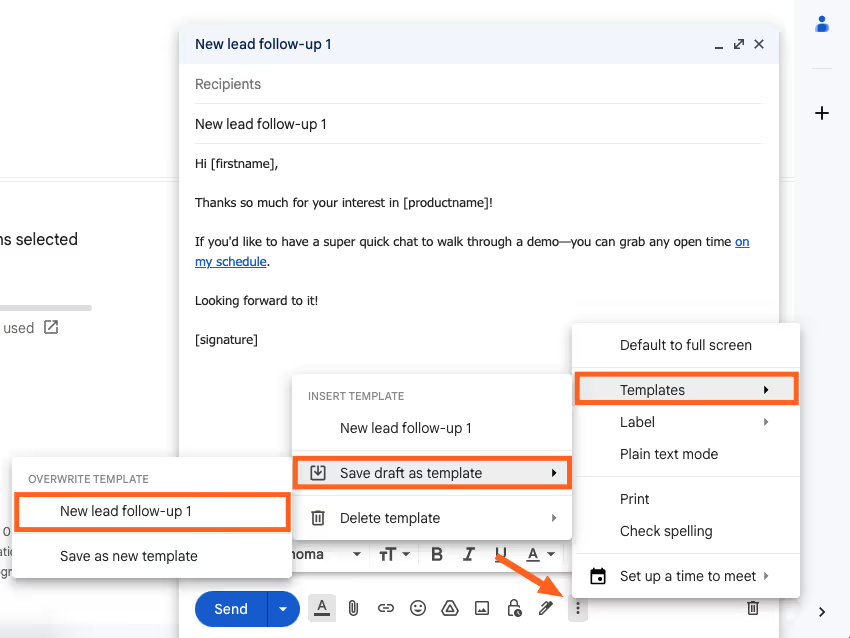
Step 4. Insert the template when needed
When composing a new message, click the three-dot menu, go to Templates, and pick the one you want. Edit the placeholders for the recipient and hit Send.
Step 5. Edit or delete templates
To overwrite a template, save a draft with the same name. To delete, go to Templates → Delete template and pick the one you no longer need.
This flow works well for individuals managing a personal inbox. If you're part of a team, run shared inboxes like support@ or sales@, or want AI to actually use your templates to auto-reply, it's time to bring in InboxPilot.
Level up your Gmail templates with InboxPilot
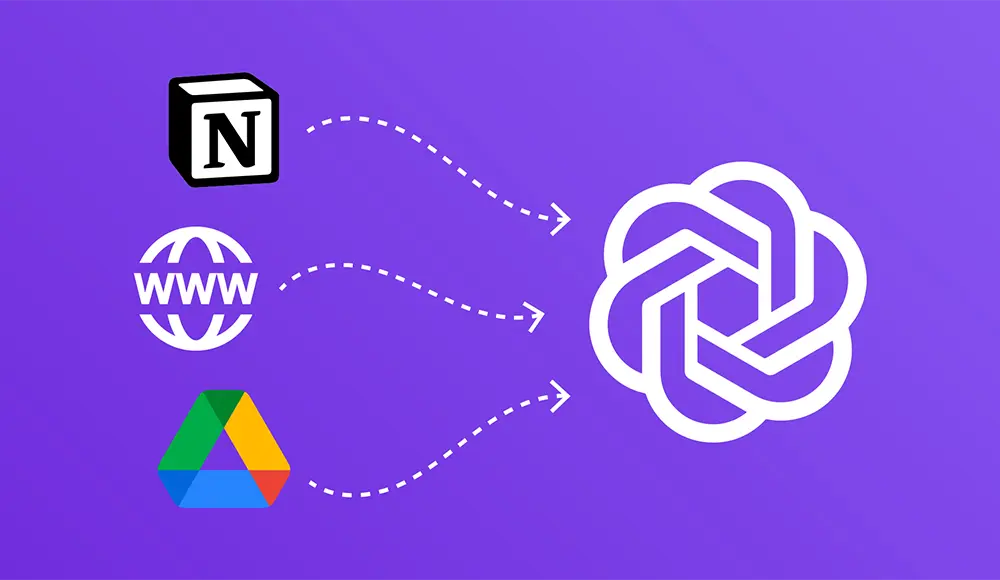
InboxPilot is a purpose-built AI email assistant that connects to Gmail and trains on your own data. One of the data sources it trains on is your Email Templates library, which lives inside the Knowledge Center alongside your files, website crawls, Notion pages, Q&A pairs, and CRM data.
That single design choice unlocks a lot. Because your templates sit in the same Knowledge Center as the rest of your knowledge, your AI agent doesn't just have templates — it understands when and how to use them.
With InboxPilot's Email Templates, you can:
- Create unlimited templates in a rich WYSIWYG editor with full formatting, links, images, and lists.
- Attach files to a template so every reply ships with the right brochure, pricing PDF, or onboarding checklist automatically.
- Run a separate template library per connected inbox so support@ and sales@ never bleed into each other.
- Let your AI auto-pick the best template for each incoming email based on the description you wrote when saving it.
- Personalize at scale with AI-driven variable filling — name, company, plan, order number — pulled from the email thread and your connected CRM.
- Keep your team aligned — every teammate sees and uses the same approved templates. Edit once, updated everywhere.
5 pro tips for using Gmail templates with InboxPilot
1. Share templates across your team from the Knowledge Center
Head to Knowledge Center → Email Templates. Any template you create there is instantly available to every teammate in your InboxPilot organization. New hires don't have to hunt for standard replies — they just open Gmail and either pick the right template, or let the AI agent do it. Any edit you make is reflected for everyone immediately — one source of truth, no stale Notion docs.
2. Give every connected inbox its own template library
In InboxPilot, when you connect multiple Gmail accounts, you can scope templates per inbox from the Knowledge Center's inbox selector. support@yourcompany.com gets your support template library; sales@yourcompany.com gets sales sequences and proposal replies. Each AI agent only sees the templates that belong to its inbox — support@ never accidentally sends a sales pitch.
3. Let AI pick and personalize the right template for every email
When you save an InboxPilot template, you write a short description — something like "Reply to inbound demo requests from SMB prospects asking about pricing." When a new email lands, the agent reads it, searches your template library for the best match, drops the template into a draft, personalizes the variables from the email thread and your CRM, and either prepares a Gmail draft or sends automatically for trusted intents.
4. Save templates with attachments so the right files ship every time
Open Knowledge Center → Email Templates, create or edit a template, and use the attachments section to upload the file(s). From that moment on, any reply using this template — whether you insert it manually or the AI inserts it — goes out with the correct attachments included. Particularly valuable for sales, legal, HR, and onboarding workflows where standard documents are sent constantly.
5. Personalize templates with variables — InboxPilot fills them automatically
Write your template once with natural-language placeholders. The AI agent fills them automatically using the email thread itself, your connected CRM (Pipedrive) for deal stage and last activity, your connected commerce platform (Shopify) for recent orders and shipping info, your calendar for real availability, and your historical email replies to match your team's voice.
How InboxPilot email templates compare to Gmail native templates
How to set up InboxPilot email templates in under 5 minutes
- Sign up free at app.inboxpilot.co — no credit card required.
- Connect Gmail via OAuth from the Connect account page. Optionally connect multiple inboxes.
- Open Knowledge Center → Email Templates.
- Optionally pick which connected inbox these templates belong to using the inbox selector.
- Click Add template. Give it a clear description, write the body in the WYSIWYG editor, and attach any files that should always go with it.
- Save. Repeat for your 5–10 most common reply types.
- Open the Playground and send a test email matching one of your scenarios. Watch the AI pick the right template and personalize it.
- Flip the connected inbox to draft or autonomous mode in Configuration when you're ready to go live.
Frequently asked questions
Can I use Gmail templates without InboxPilot?
Yes. Gmail's native templates feature (Settings → Advanced → Templates) is free for any Gmail or Workspace account and works well for individual users. The limitations show up when you need shared templates, attachments saved with the template, AI-personalized variables, or templates your AI agent uses to auto-reply.
Do InboxPilot email templates work with personal Gmail accounts?
Yes. InboxPilot works with both personal @gmail.com accounts and Google Workspace inboxes. You don't need a Gemini for Workspace subscription or ChatGPT Plus — model access is bundled into your InboxPilot plan.
Can each Gmail inbox have its own templates?
Yes. When you connect multiple Gmail accounts to InboxPilot, the Knowledge Center lets you scope templates per inbox — so your support@, sales@, and billing@ inboxes each have their own template library and never share replies they shouldn't.
Will the AI actually use my templates, or just store them?
Use them. Every template you save in the Knowledge Center becomes part of the AI agent's brain for that inbox. When a new email arrives, the agent matches it against your templates using the description you wrote, and uses the best match to draft or send a reply with variables personalized to that specific email and customer.
Can I attach files to my templates?
Yes — and this is one of the most underrated features. Upload the file once when you create the template, and every reply that uses that template ships with the file automatically. Perfect for brochures, pricing PDFs, signed contracts, onboarding checklists, and similar standard documents.
How is this different from a Gmail signature or a Smart Reply?
A signature is static and goes on every email. A Smart Reply is a one-line suggestion based on the last message. An InboxPilot Email Template is a full, personalized, attachment-aware reply that your AI picks intelligently based on the intent of the incoming email and the data in your Knowledge Center.
You have been doing it manually for too long
Connect your Gmail or Outlook inbox in one click, train InboxPilot on your business data, and start receiving replies that sound exactly like you – ready to send or sent automatically.