
Effortless Email Efficiency: Gmail Auto Replies with InboxPilot

Auto Reply in Gmail with InboxPilot: Save Time
Managing emails can be time-consuming. Gmail's auto-reply feature can help streamline this process, keeping your Gmail inbox organized whether you're on desktop or using the Gmail mailbox app on mobile.
With InboxPilot, you can enhance Gmail's capabilities even further. It allows for more personalized and efficient communication. We'll focus on Auto Reply in Gmail with InboxPilot: Save Time and Optimize Communication so you can get results fast.
Setting up auto-replies ensures timely responses, even when you're unavailable. This can improve both personal and professional interactions.
In this guide, we'll explore how to maximize efficiency with Gmail auto-replies. You'll learn to save time and optimize communication effortlessly.
Discover how InboxPilot can transform your email management. Let's dive into the world of smart auto-replies.
Why Use Auto Reply in Gmail? Key Benefits for Professionals and Teams
Auto-reply in Gmail helps maintain consistent communication. It lets recipients know their message was received and helps keep your Gmail inbox under control.
For professionals, auto-replies can save valuable time. They provide instant responses when busy or out of the office.
Teams benefit by ensuring no query goes unanswered. Auto-replies act as an acknowledgment, maintaining customer trust.
Key advantages of using Gmail's auto-reply include:
- Immediate acknowledgment
- Time-saving efficiencies
- Enhanced customer satisfaction
When workload increases, auto-replies help manage high email volumes. They reduce the stress of manual replies.
Customized auto-responses let you communicate effectively. Adjust messages for vacations, meetings, or other events.
Understanding Gmail's Built-In Auto Reply Features
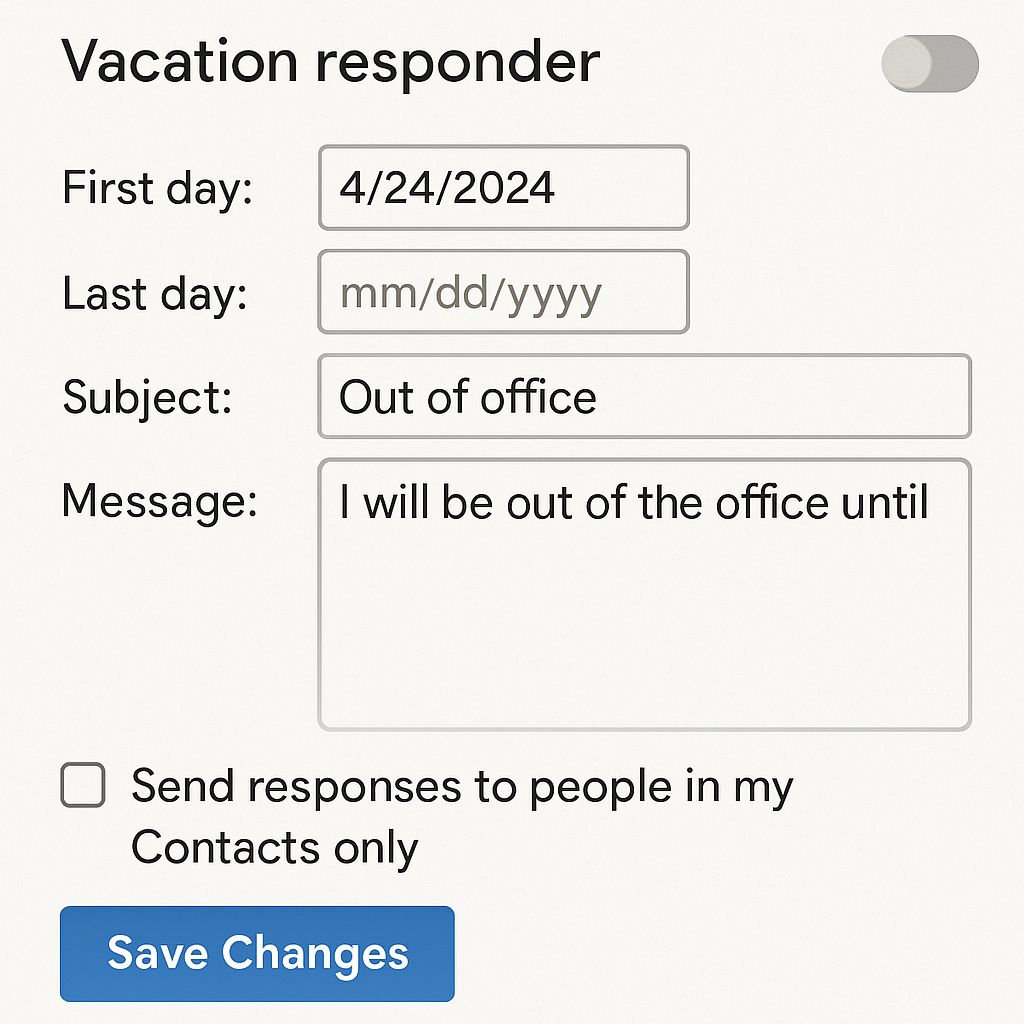
Gmail offers a built-in auto-reply feature, known as the Vacation Responder. This tool sends automatic replies while you're unavailable.
To enable it, access Gmail settings. Scroll to the Vacation Responder section and activate it. Customize your message and set the desired date range.
The Vacation Responder can be personalized. Include your return date, alternative contact information, or a helpful link.
Key aspects of Gmail's auto-reply feature include:
- Activation through settings
- Customizable messaging
- Date range specification
This feature simplifies communication during absences. It provides consistent messaging without manual input.
For more advanced needs, third-party tools like InboxPilot enhance this functionality. Gmail's built-in options remain a powerful tool on their own.
Introducing InboxPilot: Supercharge Your Gmail Auto Replies
InboxPilot elevates your Gmail auto-reply capabilities. It offers advanced features beyond the basic Vacation Responder.
With InboxPilot, customize responses for different scenarios. Tailor messages for clients, colleagues, or out-of-office notifications easily.
The tool's scheduling options enhance flexibility. Set responses for specific times or days, optimizing your communication strategy.
Notable features of InboxPilot include:
- Advanced scheduling
- Multiple account management
- Customizable templates
InboxPilot integrates seamlessly with Gmail. It boosts productivity by automating routine replies and streamlining workflows.
Its user-friendly interface ensures simple management of email communications. Harness these capabilities for effective time-saving.
Step-by-Step Guide: Setting Up Auto Reply in Gmail with InboxPilot
Setting up an auto-reply in Gmail with InboxPilot is straightforward. Start by accessing your Gmail settings to enable basic auto-reply functions.
First, log into your Gmail account. Click on the gear icon at the upper right corner, then click "See all settings."
Navigate to the "General" tab. Scroll down to the "Vacation responder" section and enable it. Enter the first and last day for the auto-reply along with your message.
Next, integrate InboxPilot for advanced features. Visit the InboxPilot website and create an account if you haven't yet.
Once registered, connect InboxPilot to your Gmail account. This allows InboxPilot to manage auto-replies more effectively. Follow on-screen prompts for seamless setup.
With InboxPilot, customize your replies using templates. Tailor each for specific contacts or groups, ensuring relevance and professionalism.
In addition, use scheduling to set specific times. This guarantees your responses match time zones and office hours for your Gmail inbox.
Here's a quick checklist for using InboxPilot:
- Enable Gmail's basic auto-reply.
- Connect Gmail to InboxPilot.
- Customize templates and schedule responses.
By following these steps, your Gmail auto-reply becomes a powerful communication tool. Enjoy streamlined and efficient email management with InboxPilot.
Customizing Auto Replies for Different Scenarios
Customizing auto-replies enhances communication and ensures your message fits each scenario. Personalization makes your auto-replies more effective.
Begin by identifying key situations where auto-replies can be useful. For example, out-of-office messages, acknowledging receipt of important documents, or providing FAQs.
Create a list of possible scenarios. Tailor messages for each situation to convey your intended tone and information. Including specific contact details improves clarity and supports further communication.
Use InboxPilot's templates to streamline this process. Adjust templates with personalized greetings and include pertinent details like alternative contacts or expected response times.
Example scenarios to consider:
- Out-of-office notifications
- Acknowledgment of received inquiries
- Resource and FAQ directions
- Contact information for urgent matters
By addressing various scenarios specifically, your auto-replies maintain professional communication standards. Continually review and refine them for better engagement.
Auto-replies can reflect your brand's image and contribute to client satisfaction with timely, informative messages.
Advanced Tips: Filters, Templates, and Scheduling for Smarter Replies
Utilize Gmail's filters to streamline your inbox management. Filters can automatically apply labels or trigger auto-replies based on specific email criteria.
Create filters for common subjects, senders, or keywords. This automates organization and ensures relevant auto-replies are sent promptly.
Popular Filter Criteria:
- Specific keywords in subjects
- Emails from particular domains
- Messages with certain attachments
Templates help maintain consistency in your responses. With InboxPilot, you can craft reusable templates for frequent communication needs.
Design templates for recurring inquiries or customer service interactions. Customize them with placeholders for names or dates to add a personal touch.
Template Usage:
- Welcome messages for new contacts
- Responses to frequently asked questions
- Introductions to new services or features
Scheduling enables you to send replies at optimal times. With InboxPilot, you can configure responses to align with the recipient's time zone. Combined with gmail delay send for outbound messages, you can coordinate replies and follow-ups to land at the perfect moment.
Advanced tools like these improve productivity, ensuring prompt, tailored responses whenever needed.
Related Gmail Productivity Features to Save Even More Time
Gmail offers several powerful features to boost efficiency. Understanding and using these tools can save valuable time for users.
Labels and categories streamline your inbox by organizing emails into manageable sections. This helps in quickly locating critical messages.
Benefits of Using Labels:
- Easy sorting of incoming emails
- Enhanced email organization
- Quick access to important conversations
Gmail's integration with Google Drive facilitates easy management of attachments. This feature helps keep inbox clutter to a minimum.
Integration Perks:
- Seamless attachment sharing
- Easy access to shared documents
- Reduced need for multiple attachments
The combination of these features contributes to an improved workflow. Gmail's continuous updates ensure these tools meet evolving user demands.
How to Auto Forward Emails in Gmail
Auto forwarding emails in Gmail ensures messages reach the right place. Setting this up is straightforward through the settings menu. If you're wondering how to auto forward emails in gmail, the process below covers each step.
Navigate to the Settings page and select 'Forwarding and POP/IMAP.' Add your forwarding address, and confirm the email verification. You can also create filters to automatically forward emails Gmail receives to a specified account.
Setup Steps:
- Open Gmail settings
- Select 'Forwarding and POP/IMAP'
- Add and verify forwarding address
How to Quickly Delete Emails in Gmail
Deleting emails quickly is essential for inbox management. Gmail offers several ways to efficiently remove unnecessary messages. On mobile, the Gmail mailbox app supports swipe actions for rapid cleanup.
Utilize keyboard shortcuts or create filters to automatically trash certain emails. This keeps your inbox clean without manual effort.
Quick Deletion Methods:
- Use keyboard shortcuts (e.g., press 'Delete' after selecting)
- Configure filters to auto-delete specific messages
by Nong (https://unsplash.com/@californong)
Using Gmail Delay Send and Reply All Features
Gmail's delay send allows scheduling emails for future delivery. This feature is ideal for sending messages at optimal times. For consistency in naming, many users refer to this as gmail delay send.
The 'reply all' feature ensures all original recipients receive your response. This keeps everyone in the loop, which is crucial for group emails. If you're unsure how to reply all in gmail, choose Reply all next to the sender details to include every recipient from the original thread.
Key Uses:
- Delay sends for time-zone optimized delivery
- Use 'reply all' to maintain group communication
Best Practices for Optimizing Communication with Auto Replies
Auto replies can greatly enhance communication efficiency when used wisely. It's vital to tailor your messages to suit the context of each scenario.
Keep your auto replies concise yet informative. Include essential details such as alternative contact methods or expected response times.
Key Tips:
- Personalize responses based on recipient
- Use clear and polite language
- Update frequently based on current needs
Regularly reviewing and updating your auto replies ensures they remain relevant. This proactive approach enhances communication and builds trust with your contacts.
Troubleshooting and FAQs: Common Issues with Gmail Auto Replies and InboxPilot
Encountering issues with Gmail auto replies is not uncommon. Most problems arise from incorrect settings or integration challenges.
First, ensure your Gmail settings are properly configured. If using InboxPilot, check its connection to your Gmail account.
Common Issues and Solutions:
- Auto replies not sending: Recheck active settings
- Delayed responses: Verify scheduling configuration
- Missing templates: Reinstall or update InboxPilot
For persistent problems, consult InboxPilot's support team. They can provide targeted troubleshooting steps to resolve most issues promptly. Regular updates and active support channels help maintain efficient operation.
Conclusion: Transform Your Gmail Inbox with Smart Auto Replies
Gmail auto replies, combined with tools like InboxPilot, can greatly enhance your communication efficiency. They help automate routine responses, saving valuable time for more pressing tasks.
By implementing smart auto-replies and leveraging Gmail's robust features, you can streamline email management. This strategic approach transforms how you handle communication, ensuring that your Gmail inbox works more effectively for you.
Q&A
Question: What’s the difference between Gmail’s built-in auto-reply and using InboxPilot?
Short answer: Gmail’s built-in auto-reply (Vacation Responder) handles simple, time-bound out-of-office messages you activate in Settings with a custom message and date range. InboxPilot adds advanced capabilities: scenario-specific replies, customizable templates, scheduling by specific times/days, and multiple account management—all integrated with Gmail to streamline and personalize responses beyond a single generic message.
Question: How do I set up auto reply in Gmail with InboxPilot?
Short answer: Start in Gmail: click the gear icon > See all settings > General tab > enable Vacation responder, then set dates and your message. Next, create an InboxPilot account, connect your Gmail, and follow the on-screen prompts. In InboxPilot, choose or create templates, tailor messages for contacts or groups, and schedule send windows (e.g., specific hours or time zones). Quick checklist: 1) Enable Gmail’s basic auto-reply, 2) Connect Gmail to InboxPilot, 3) Customize templates and schedule responses.
Question: How can I customize auto-replies for different scenarios without sounding robotic?
Short answer: Identify your common situations (out-of-office, receipt acknowledgments, FAQs/resources, urgent-contact routing). For each, write concise messages with essentials like return dates, alternative contacts, expected response times, or helpful links. Use InboxPilot’s templates with personalized greetings and placeholders (e.g., names, dates), and periodically review and refine them to match your tone and current priorities.
Question: How do filters, templates, and scheduling work together to save time?
Short answer: Use Gmail filters to catch specific keywords, senders, or attachments so messages get labeled or trigger the right auto-replies. Pair that with InboxPilot templates for consistent, on-brand responses to recurring inquiries. Then schedule replies to align with office hours or recipient time zones. Combine this with Gmail delay send for planned follow-ups so acknowledgments and later responses arrive at the optimal moment.
Question: What should I check if my auto-replies aren’t sending or are delayed?
Short answer: Verify the Gmail Vacation Responder is enabled with correct dates and content. If you’re using InboxPilot, confirm it’s properly connected to your Gmail and that your scheduling windows are set as intended. If templates don’t appear, reinstall or update InboxPilot. For persistent issues, reach out to InboxPilot support for targeted troubleshooting. Regularly reviewing both Gmail and InboxPilot settings helps prevent most problems.

You have been doing it manually for too long
Connect your Gmail or Outlook inbox in one click, train InboxPilot on your business data, and start receiving replies that sound exactly like you – ready to send or sent automatically.