


If you've switched phones, left Outlook behind, or inherited a spreadsheet full of customer emails, getting all those contacts into Gmail isn't obvious at first. Gmail doesn't have a big "Import" button sitting in the inbox. It happens somewhere else entirely, and once you know where, it takes about two minutes.
This guide covers every way to upload contacts to Gmail: from a CSV file, a vCard, Outlook, your iPhone, and your Android. And once your contacts are set up, we'll show you how to stop managing email manually altogether.
First: Gmail Contacts Live in Google Contacts, Not Gmail
This is the part that trips most people up. Gmail doesn't manage contacts on its own. It uses Google Contacts (https://contacts.google.com) as a shared address book that syncs across Gmail, Google Meet, Android, and the rest of Google's apps.
So the process is always: import into Google Contacts, and it shows up in Gmail automatically. You don't need to do anything inside Gmail itself.
For bulk imports, Google Contacts accepts two file types:
- CSV — the best format for spreadsheets, CRM exports, and anything with lots of contacts at once.
- vCard (.vcf) — the standard format from iPhones, Macs, and most mobile contact apps.
Method 1: Upload Contacts from a CSV File
This is the most common approach for businesses and anyone moving contacts out of a CRM, spreadsheet, or old email platform.
Get your CSV ready first
Your CSV needs column headers in the first row. Google Contacts is pretty good at recognizing common header names, but it works best when they match its own format. The ones it knows without any guesswork are:
- First Name
- Last Name
- Email Address
- Phone 1 - Value
- Organization Name
- Notes
If your CSV uses different column names, like "Work Email" instead of "Email Address," rename them before importing. It takes two minutes in Excel or Google Sheets and saves a lot of cleanup afterward.
A quick shortcut: export one of your existing Google contacts as a CSV. The file that downloads uses Google's exact headers. Use that as your template.
Import the file
- Go to contacts.google.com and sign in to the right Google account.
- In the left sidebar, click Contacts.
- Click Import Contacts (middle of the screen), choose your CSV, and click Import.
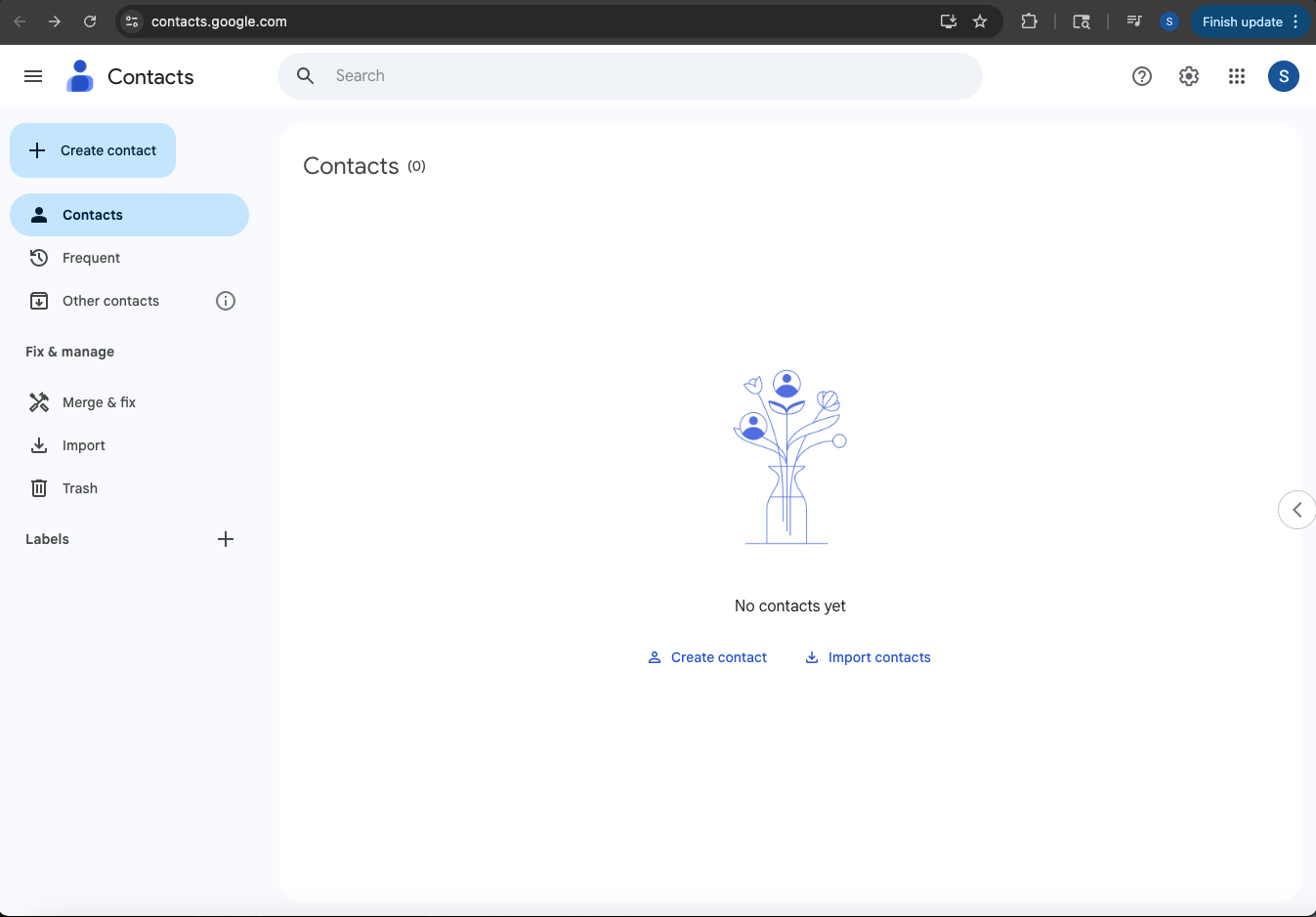
- Wait a moment. For large files it can take a minute or two.
- Once done, go to All Contacts to see everything that came in.
Clean up duplicates
After any import, check the left sidebar for a Merge and fix suggestion. Google will flag likely duplicates and let you merge them in one click. Worth doing before you start emailing anyone.
Google Contacts allows up to 3,000 contacts per import and a total of 25,000 contacts per account. If your list is bigger, split it into batches of 2,000 to 3,000 rows and import them one at a time.
Method 2: Import a vCard (.vcf) File
vCards are what iPhones, Macs, and iCloud export by default. A single .vcf file can hold one contact or thousands, and Google Contacts handles both.
Export a vCard from your source
- Mac (Contacts app): Select all contacts, then go to File, Export, Export vCard.
- iCloud.com: Go to Contacts, select all, click the gear icon, and choose Export vCard.
- iPhone: The built-in Contacts app doesn't export all contacts at once. Use a free app like My Contacts Backup to export everything as a single .vcf file.
Import into Google Contacts
- Go to contacts.google.com and sign in to the right Google account.
- In the left sidebar, click Contacts.
- Click Import Contacts (middle of the screen), choose your CSV, and click Import.
- Select your .vcf file and click Import.
Google will bring in everything, including phone numbers, email addresses, and even profile photos if they're embedded in the file.
Method 3: Move Contacts from Outlook to Gmail
If you're leaving Outlook behind, here's how to bring your contacts over without losing anything.
Export from Outlook
- Open Outlook and go to File.
- Click Open and Export, then Import/Export.
- Choose Export to a file, then Comma Separated Values.
- Select Contacts as the folder.
- Save the .csv file somewhere you can find it.
Clean it up, then import
Open the file in Excel or Google Sheets and scan for blank rows or misaligned columns. Then follow the same CSV import steps in Method 1. Google does a decent job mapping Outlook's format, but spot-check a handful of contacts after importing just to be sure names and emails ended up in the right places.
Google Workspace admins: If you're migrating a whole organization, look into the Google Workspace Migration for Microsoft Outlook tool (GWMMO). It handles email, calendar, and contacts together in one migration.
Method 4: Sync iPhone Contacts to Gmail
If your contacts live on your iPhone, you can sync them directly to Google without exporting any files. It happens automatically once you add your Google account.
- Open Settings on your iPhone.
- Go to Mail, then Accounts, then Add Account, then Google.
- Sign in with your Gmail address and password.
- Toggle Contacts to on.
Your iPhone contacts will start syncing to Google Contacts within a few minutes. Any new contacts you add on the phone will sync automatically going forward.
If you use iCloud Contacts specifically, the sync above won't work since iCloud and Google don't talk to each other directly. In that case, export a vCard from iCloud.com and import it using Method 2.
Method 5: Sync Android Contacts to Gmail
Android phones are already tied to a Google account, so your contacts are probably syncing already. Here's how to check, or fix it if something got turned off.
- Open Settings and go to Accounts, then Google.
- Tap your Google account.
- Make sure Contacts is toggled on.
- Tap Sync now if you want to force it immediately.
If you're switching to a different Google account on the same Android phone, go to your Contacts app, hit Settings, and export your contacts as a .vcf file first. Then import that file into the new account using Method 2.
A Few Things Worth Doing After You Import
Use labels to stay organized
Once your contacts are in, select a group and apply a label like "Customers," "Leads," or "Newsletter." Labels work like tags and make it easy to find a specific group when you need to email them later. The only catch is that Gmail labels don't apply themselves — you have to do it manually, which gets tedious fast if you're getting a steady volume of email.
If you want labeling to happen automatically, InboxPilot handles that for you. It reads every email the moment it arrives and applies the right label instantly, whether that's flagging an invoice, tagging a newsletter, or marking something urgent. No rules to write, no filters to maintain.
Know how to undo if something goes wrong
Imported the wrong file? There's an Undo import option in Google Contacts that appears right after an import. It removes the entire batch in one click. If you miss that window, you'll have to delete contacts manually, so it's worth catching early.
Think about what happens when those contacts start emailing you
This is where most people don't plan ahead. Once you've got a full contact list in Gmail, your inbox gets busy fast. Replies come in, follow-ups pile up, and sorting and responding to everything manually starts eating up real time every day.
That's exactly the problem InboxPilot is built to solve. It connects directly to your Gmail account and lets you set up custom email actions that run automatically based on your own instructions. Tell it to auto-forward invoices to your accounting team, mark order confirmations as read the moment they arrive, star anything from a VIP contact, archive newsletters before they clutter your inbox, or route support requests to the right person. You can stack multiple actions on a single rule too, so one email can get labeled, forwarded, and marked as read all at once. Set it up once and it runs on every email, every time, without you touching it.
On top of that, the AI reads your incoming emails and drafts replies in your voice using your company's own data. You can review before sending, or turn on auto-send and let it run your inbox around the clock.
Try InboxPilot free no credit card needed. It takes a few minutes to connect your inbox and you'll see the difference by end of day.
Common Questions
How many contacts can I import to Gmail at once?
Up to 3,000 per import. The total limit per Google account is 25,000 contacts, or up to 50,000 on some Google Workspace plans. For larger lists, just split your CSV into batches.
Why aren't my imported contacts showing in Gmail autocomplete?
Wait a few minutes after importing, then refresh Gmail. Autocomplete pulls from Google Contacts and your email history, so it can take a moment to update. Also make sure you're logged into the same Google account in both places.
Can I import contacts on my phone?
The Google Contacts mobile app has limited import options. For CSV or vCard imports, use a desktop browser at contacts.google.com. For phone contacts, the account sync methods above are the easier route.
Does importing contacts to Google Contacts automatically update Gmail?
Yes. They're the same system. Any contact added to Google Contacts shows up in Gmail's autocomplete suggestions right away.
What's the difference between My Contacts and Other Contacts in Gmail?
My Contacts are ones you've explicitly saved or imported. Other Contacts are addresses Gmail has quietly saved from your email activity. Imported contacts always land in My Contacts.
Can I do this with a Google Workspace business account?
Yes, the process is exactly the same. Sign into your Workspace account and go to contacts.google.com to import. Admins can also use the Admin SDK or Directory API to push contacts across an entire organization in bulk.
That's It
Importing contacts to Gmail is straightforward once you know that Google Contacts is the place to do it, not Gmail itself. Whether you're pulling in a CSV, migrating from Outlook, or syncing from your phone, the steps above will get you there.
Once your contacts are in, the real question is what you do with all the email that follows. If you'd rather not spend your day sorting, forwarding, and replying manually, InboxPilot handles it for you. It reads every incoming email, applies your custom routing rules, drafts replies in your voice, and runs your inbox the way you'd run it yourself — just without you having to be there for it.

You have been doing it manually for too long
Connect your Gmail or Outlook inbox in one click, train InboxPilot on your business data, and start receiving replies that sound exactly like you – ready to send or sent automatically.